

Daha önce başka bir başlıkta paylaşmıştım Windows 11 için test ettim.
Windows'un storage sense i var artık ama; Cleanmgr Windows 11 için de çalışmaya devam ediyor.
https://docs.microsoft.com/en-us/window ... s/cleanmgr
https://docs.microsoft.com/en-us/troubl ... eanup-tool
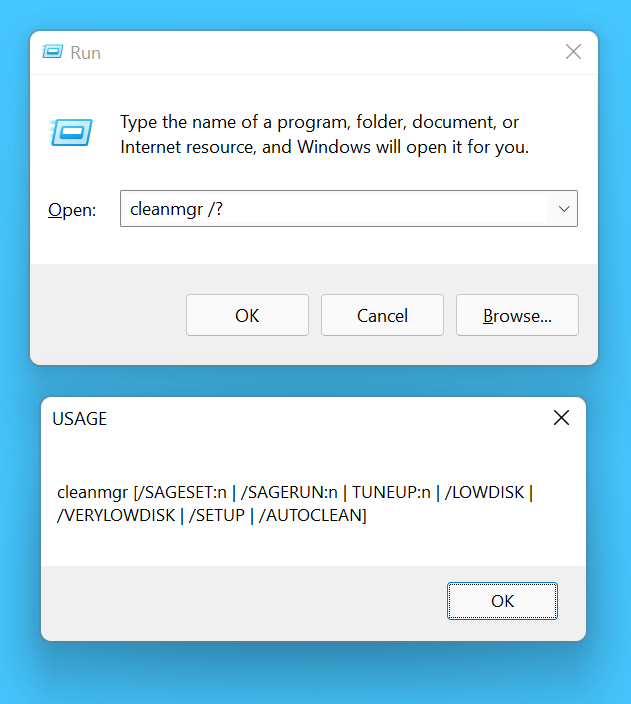
cleanmgr hoşuma giden yönü kendi içinde bazı komutlar ile de çalışmaya izin verdiği için prosedürler ayarlayabiliyorsunuz.cleanmgr [/SAGESET:n | /SAGERUN:n | TUNEUP:n | /LOWDISK | /VERYLOWDISK | /SETUP | /AUTOCLEAN]
PARAMETERS
Parameter Description
/d <driveletter> Specifies the drive that you want Disk Cleanup to clean.
NOTE: The /d option is not utilized with /sagerun:n.
/sageset:n Displays the Disk Cleanup Settings dialog box and also creates a registry key to store the settings that you select. The n value, which is stored in the registry, allows you to specify tasks for Disk Cleanup to run. The n value can be any integer value from 0 to 9999.
/sagerun:n Runs the specified tasks that are assigned to the n value if you use the /sageset option. All drives on the computer are enumerated and the selected profile runs against each drive.
/tuneup:n Run /sageset and /sagerun for the same n .
/lowdisk Run with the default settings.
/verylowdisk Run with the default settings, no user prompts.
/? Displays help at the command prompt.
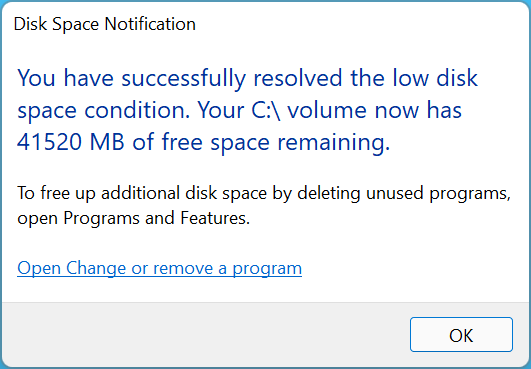
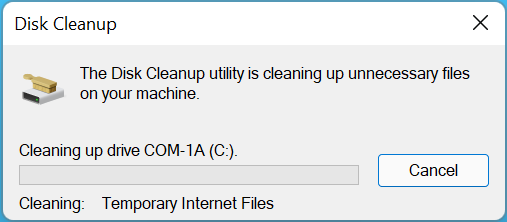
Benim ilglendiğim komutlar /VERYLOWDISK ve /AUTOCLEAN komutları, bu kombinasyonu kullandığınızda bütün temizlik seçeneklerini çalıştırıp, bittiğinde sizi bilgilendiriyor.
Komutun açık yazımı
Cleanmgr_Verylowdisk_Autoclean.bat
Kod: Tümünü seç
%windir%\system32\cleanmgr.exe /verylowdisk /autocleanBir .bat dosyasına kayıt edip kullanabilirsiniz. (Komut istemi penceresi açılır)
Bu komut ile görev zamanlayıcıda görev hazırlayabilirsiniz.
Komut istemci penceresini görmeden kullanmak için vbs dosyası ile de başlatabilirsiniz.
Cleanmgr_Verylowdisk_Autoclean.vbs
Kod: Tümünü seç
CreateObject("Wscript.Shell").Run "cmd /c " & chr(34) & "%windir%\system32\cleanmgr.exe /verylowdisk /autoclean" & chr(34), 0, True