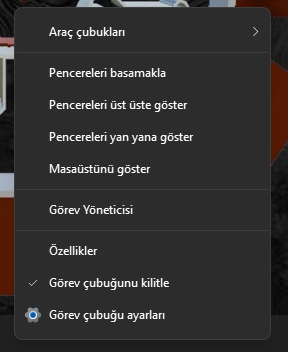
Bu tip şeyleri sevdiğin için paylaştım umarım işene yarar.

Bence bu script de beğenceksin
Kod: Tümünü seç
Option Explicit
Dim Ws,AppData,Wifi_Folder,fso,f,Data
Dim SSID,KeyPassword,ExportCmd,oFolder,File,Info,LogFile
LogFile = Left(Wscript.ScriptFullName,InstrRev(Wscript.ScriptFullName, ".")) & "txt"
Set Ws = CreateObject("Wscript.Shell")
Set fso = CreateObject("Scripting.FileSystemObject")
AppData = ws.ExpandEnvironmentStrings("%AppData%")
Wifi_Folder = AppData & "\Wifi"
If Not fso.FolderExists(Wifi_Folder) Then fso.CreateFolder(Wifi_Folder)
ExportCmd = "Cmd /C netsh wlan export profile key=clear folder="& Wifi_Folder &""
ws.run ExportCmd,0,True
Set oFolder = fso.GetFolder(Wifi_Folder)
Info = String(40,"-") & vbCrlf & Space(4) &_
"SSID" & Space(3) &":"& Space(3) & "Password" & vbCrlf &_
String(40,"-") & vbCrlf
For Each File in oFolder.Files
	If UCase(fso.GetExtensionName(File.Name)) = "XML" Then
		Set f=fso.opentextfile(File,1)
		Data = f.ReadAll
		SSID = Extract(Data,"(?:<name>)(.*)(?:<\/name>)")
		KeyPassword = Extract(Data,"(?:<keyMaterial>)(.*)(?:<\/keyMaterial>)")
		Info = Info & qq(SSID) & ":" & qq(KeyPassword) & vbCrlf
	End If
Next
MsgBox Info,vbInformation
Call WriteLog(Info,LogFile)
If fso.FileExists(LogFile) Then ws.run qq(LogFile)
'---------------------------------------------------------------------------------------------
Function Extract(Data,Pattern)
	Dim oRE,colMatches,Match,numMatches,myMatch
	Dim numSubMatches,subMatchesString,i,j
	set oRE = New RegExp
	oRE.IgnoreCase = True
	oRE.Global = False
	oRE.MultiLine = True
	oRE.Pattern = Pattern
	set colMatches = oRE.Execute(Data)
	numMatches = colMatches.count
	For i=0 to numMatches-1
'Loop through each match
		Set myMatch = colMatches(i)
		numSubMatches = myMatch.submatches.count
'Loop through each submatch in current match
		If numSubMatches > 0 Then
			For j=0 to numSubMatches-1
				subMatchesString = subMatchesString & myMatch.SubMatches(0)
			Next
		End If
	Next
	Extract = subMatchesString
End Function
'---------------------------------------------------------------------------------------------
Function qq(str)
	qq = Chr(34) & str & Chr(34)
End Function
'---------------------------------------------------------------------------------------------
Sub WriteLog(strText,LogFile)
	Dim fs,ts
	Const ForWriting = 2
	Set fs = CreateObject("Scripting.FileSystemObject")
	Set ts = fs.OpenTextFile(LogFile,ForWriting,True)
	ts.WriteLine strText
	ts.Close
End Sub
'---------------------------------------------------------------------------------------------